The short answer: load your Team ID, check your team rating, test your best transfer against rolling, pick a captain with secure minutes and a good fixture, then check whether this is the week for a chip. In My FPL Coach that takes about five minutes, and you confirm the final moves in the official game yourself.
Deadline day is when most points are lost: a rushed transfer, a captain picked on a hunch, a chip forgotten until it expires. A fixed routine fixes that. This guide walks through the one we built My FPL Coach around. Every tool is open to everyone during the beta.
Step 1: Load your team with your Team ID
My FPL Coach only needs your public Team ID: no password and no sign-up.
- Open the Points page of your fantasy team.
- Look at the address bar:
…/entry/1234567/event/7. The number after entry/ is your Team ID. - Paste it on the My FPL Coach home page and press Analyse my team.
Your Team ID is remembered on that device, so next time you go straight to your dashboard. More detail in our guide to finding your Team ID.
Step 2: Read your team rating
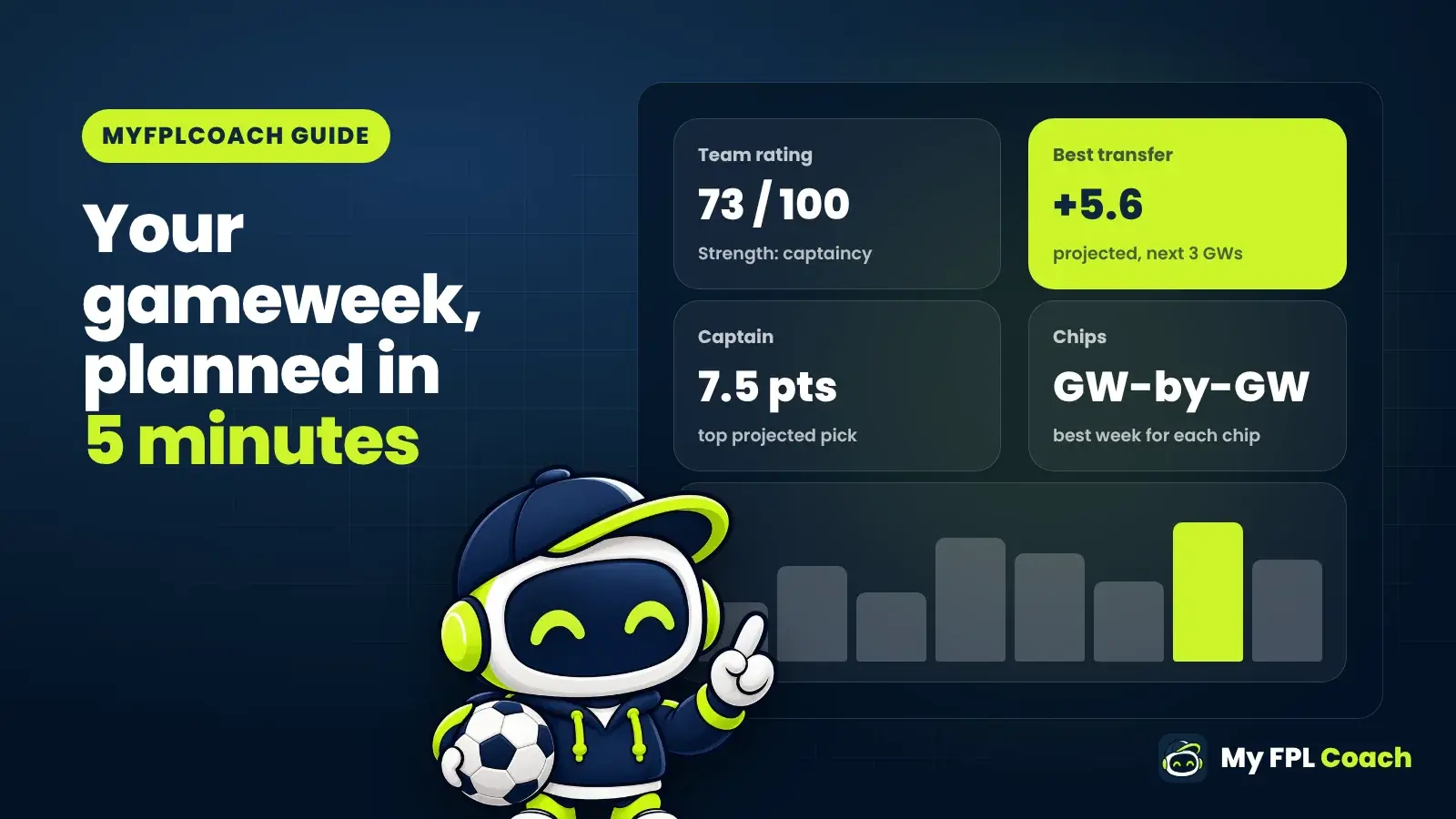
The dashboard opens on your whole gameweek. The team rating scores your squad from 0 to 100 and names your strongest area and your weak link. The weak link is where to look first for a transfer.
At the top, set the planning window: this gameweek, or 3, 5, 8 or 10 gameweeks ahead (or any number from 1 to 20). For transfers, three to five weeks is a sensible default. Everything recalculates when you change it. You can also rate your team without opening the full dashboard.
Step 3: Find your best transfer, and compare it with rolling
Open Transfers. My FPL Coach tests every legal swap against your bank, selling prices and the three-per-club limit, then ranks them by projected gain over your planning window.
- Choose a strategy: protect your rank, chase a rival, balanced, aggressive or differentials.
- Lock players you want to keep, and tick No hits if you never want to pay −4.
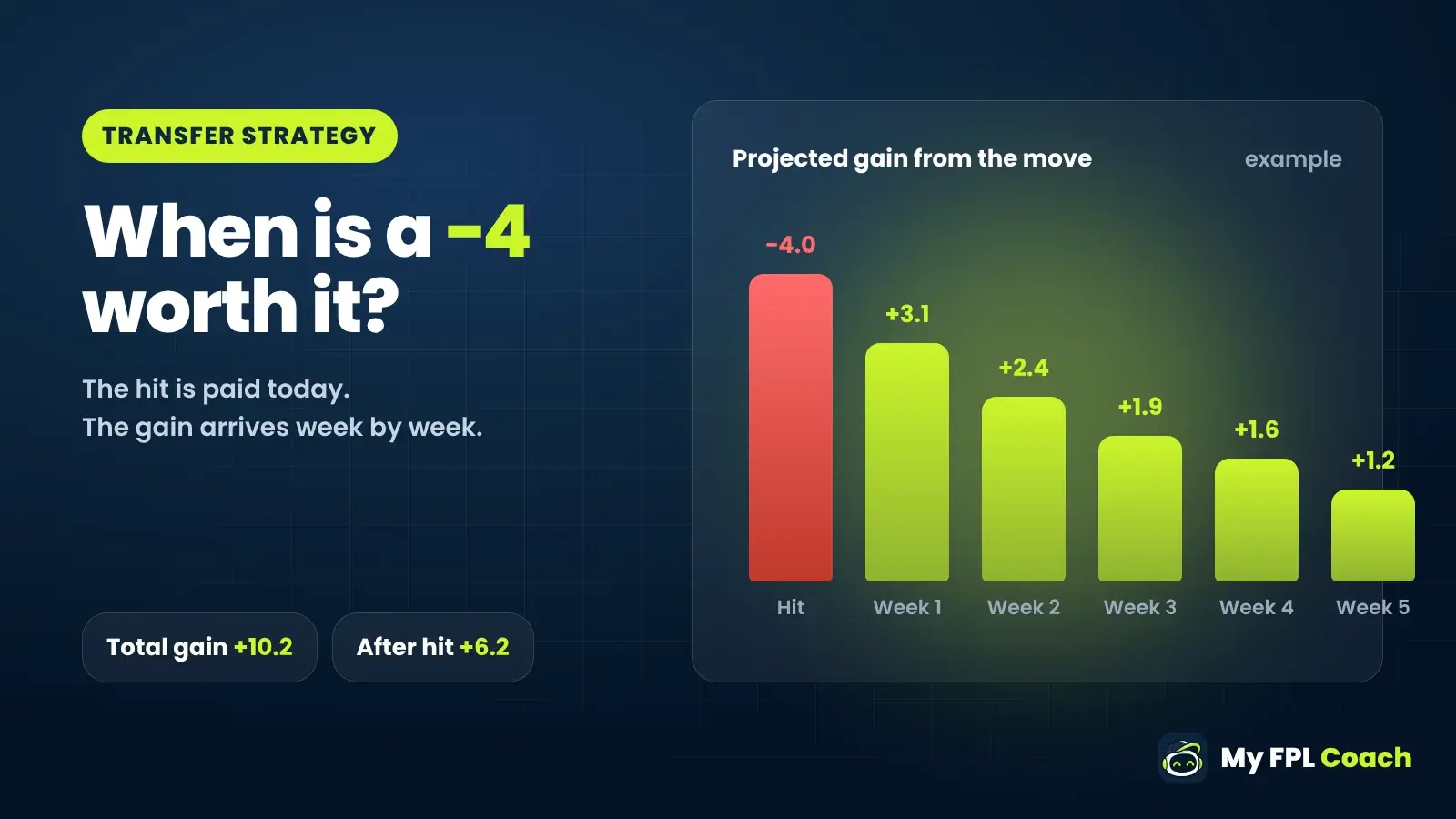
- Compare rolling, one transfer and a hit side by side before deciding.
If the best move barely beats rolling, roll it. Our article on when a hit is worth it explains the threshold we use.
Step 4: Set your XI and captain
In My Team, start from the best XI the projections suggest, then make it yours: choose a formation, tap a starter and then a bench player to swap them, and tap a starter twice to make him captain. The total shows how your XI compares with the best possible one.
For the armband, look for three things: near-certain minutes, penalties or plenty of shots, and a weak opponent. The captain picker ranks the options with projected points. You can also save a planned team for this gameweek or a future one and come back to it.
Step 5: Check your chips
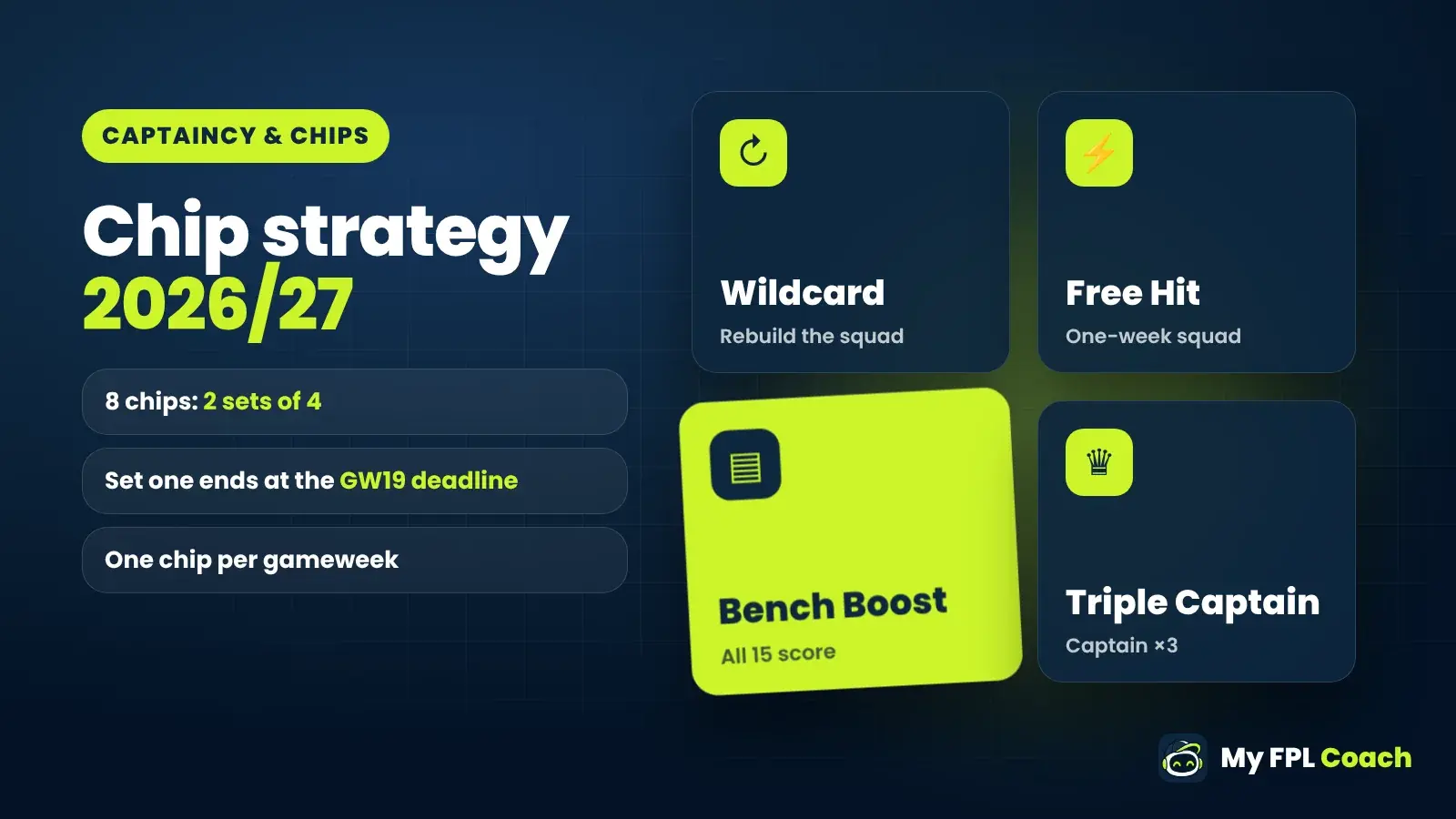
The Chips page sizes each chip week by week for your squad and says Play now, names its best gameweek, or says Hold. In 2026/27 the first set of chips must be played before the Gameweek 19 deadline (see the Premier League's chip rules), so check this page every week in December. Our chip strategy guide explains when each one is worth playing.
Step 6: Let Wiz walk you through it
If you'd rather be guided, press Start the Coach. Wiz, the My FPL Coach mascot, moves across your dashboard and explains each decision in plain English. Use Next, Back and Pause to go at your own pace, then save the plan to History.
Step 7: Confirm in the official game
My FPL Coach is read-only: it never changes your team. Once you're happy, make the transfers, captain choice and any chip in the official FPL game before the deadline. Set a deadline reminder in My FPL Coach so you don't miss it.
The five-minute routine
- Load your Team ID.
- Read the team rating and its weak link.
- Test your best transfer against rolling.
- Pick a captain with secure minutes.
- Check whether this is a chip week, then confirm everything in the game.
Ready?
Open My FPL Coach and enter your Team ID. New to FPL? Start with our beginner's guide to how FPL works, or read the full how-to guide for every tool.